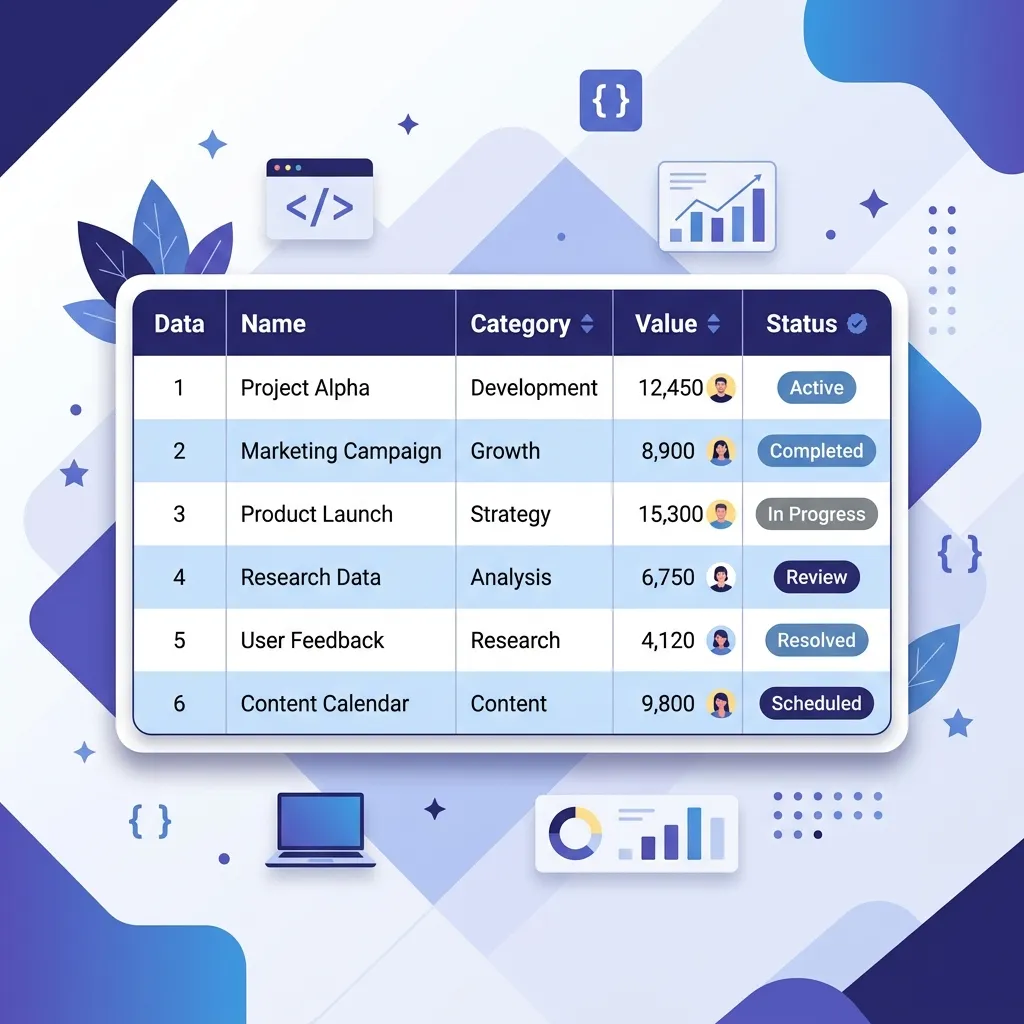
HTML tables have a bad reputation in web development — largely because of their historical misuse for page layouts and their notoriously ugly default styling. But tables are the semantically correct element for displaying tabular data, and with modern CSS, they can look absolutely stunning. In this guide, you will learn how to transform plain HTML tables into professional, responsive, and visually appealing data displays that enhance user experience rather than detracting from it.
Reset the Browser Defaults
The first step in styling any HTML table is eliminating the browser's default styling, which includes cell spacing, collapsed borders, and inconsistent padding. Start with a clean foundation:
table {
  width: 100%;
  border-collapse: collapse;
  border-spacing: 0;
  font-family: 'Inter', -apple-system, sans-serif;
  font-size: 0.9rem;
}

th, td {
  padding: 12px 16px;
  text-align: left;
  border-bottom: 1px solid #e2e8f0;
}

th {
  font-weight: 600;
  color: #1e293b;
  background-color: #f8fafc;
  text-transform: uppercase;
  font-size: 0.75rem;
  letter-spacing: 0.5px;
}
The border-collapse: collapse property is critical — it merges adjacent cell borders into a single line, eliminating the double-border appearance that makes default tables look outdated. Combined with proper padding and a subtle header background, this foundation already looks significantly more professional than the browser default.
Zebra Striping for Readability
Alternating row colors (zebra striping) is one of the most effective techniques for improving data readability in large tables. It helps users track data across long rows without losing their place. Use the :nth-child selector for this:
tbody tr:nth-child(even) {
  background-color: #f8fafc;
}

tbody tr:hover {
  background-color: #eff6ff;
  transition: background-color 0.15s ease;
}
The hover effect provides an additional visual cue, making it easy to identify which row the user is examining. Keep the color difference subtle — aggressive zebra striping can actually reduce readability rather than improve it.
Sticky Headers for Long Tables
When a table contains many rows and requires scrolling, sticky headers keep the column labels visible at all times, preventing users from losing context about what each column represents:
.table-container {
  max-height: 500px;
  overflow-y: auto;
  border-radius: 12px;
  border: 1px solid #e2e8f0;
}

thead th {
  position: sticky;
  top: 0;
  z-index: 1;
  background-color: #f1f5f9;
  box-shadow: 0 1px 0 #e2e8f0;
}
Wrap your table in a container with a fixed maximum height and overflow-y: auto. The position: sticky on thead th keeps the header fixed at the top of the scrollable area. The subtle box-shadow creates a visual separation between the sticky header and the scrolling content.
Making Tables Responsive
Tables are inherently difficult on mobile devices because they are designed for horizontal data display, while mobile screens are narrow. There are several strategies for making tables responsive, each with different trade-offs:
Strategy 1: Horizontal Scroll
The simplest approach is wrapping the table in a scrollable container. This preserves the full table layout but requires horizontal scrolling on small screens.
.table-wrapper {
  overflow-x: auto;
  -webkit-overflow-scrolling: touch;
  border-radius: 12px;
  border: 1px solid #e2e8f0;
}
Strategy 2: Stacked Card Layout
A more mobile-friendly approach transforms each row into a card-like layout where cells stack vertically with their column headers displayed inline:
@media (max-width: 768px) {
  table, thead, tbody, th, td, tr {
    display: block;
  }
  thead { display: none; }
  tr {
    margin-bottom: 16px;
    border: 1px solid #e2e8f0;
    border-radius: 12px;
    padding: 16px;
    background: white;
  }
  td {
    border: none;
    padding: 8px 0;
    display: flex;
    justify-content: space-between;
  }
  td::before {
    content: attr(data-label);
    font-weight: 600;
    color: #1e293b;
    margin-right: 16px;
  }
}
This technique uses the data-label attribute on each <td> to display the column header inline. It creates a clean, card-based mobile layout that is much easier to read on narrow screens than a horizontally scrolled table.
Adding Visual Polish
Small details make a big difference in table aesthetics:
- Rounded corners: Wrap the table in a container with
border-radiusandoverflow: hiddenfor modern rounded edges. - Status indicators: Use color-coded badges or dots to represent status values (active, pending, error) instead of plain text.
- Number alignment: Right-align numeric data using
text-align: righton the relevant cells for easier comparison. - Column highlighting: Use
:hoverontd:nth-child(n)to subtly highlight the column being examined. - Sort indicators: Add arrow icons in the header to indicate sortable columns, even if sorting is handled by JavaScript.
Export Tip: Need to share your styled table as an image? Our Table to Image tool renders your HTML table exactly as it appears in the browser and exports it as a high-quality PNG, JPG, or WebP image.
Convert HTML Tables to Images
Snapshot your styled tables as high-quality images for presentations, reports, and documentation.
Try Table to Image →Accessibility Considerations
Beautiful tables are useless if they are not accessible to all users. Follow these guidelines to ensure your tables work with screen readers and keyboard navigation:
- Use proper
<thead>,<tbody>, and<tfoot>elements to define table structure. - Always include a
<caption>element that describes the table's purpose and content. - Use
scope="col"on column headers andscope="row"on row headers for correct screen reader associations. - Ensure sufficient color contrast between text, backgrounds, and borders (minimum 4.5:1 ratio).
- Do not rely solely on color to convey information — add text labels or icons alongside color indicators.
Conclusion
HTML tables are a powerful and semantically appropriate way to display data on the web. With modern CSS techniques — from zebra striping and sticky headers to responsive card layouts and subtle visual polish — you can transform any data table into a professional, user-friendly interface element. Focus on readability, responsiveness, and accessibility, and your tables will enhance rather than hinder the user experience.